
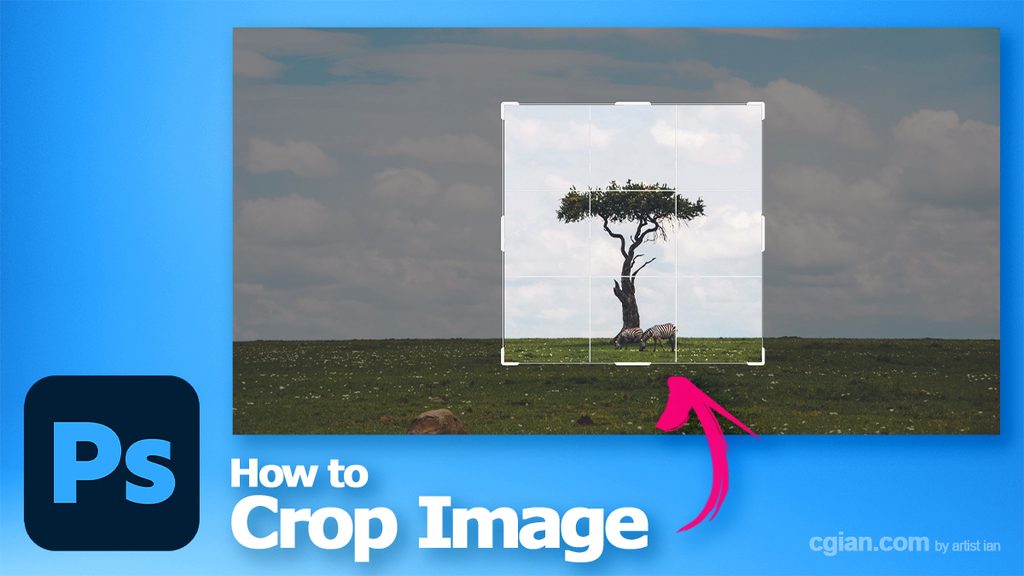
Photoshop tips and tricks, tutorial video shows how to crop image in Photoshop. In Photoshop, we have 3 ways to crop image, use selection to crop, crop with specific size using Canvas size, and using Crop Tool. Steps are easy to follow for Photoshop beginners. Happy sharing and save it for later. More Adobe Photoshop Tutorial are available here.
How to crop image in Photoshop
We can follow these steps to use crop tool to crop image in Photoshop,
1. After open an image in Photoshop, we can go to Left Tool Bar, and find Crop Tool
2. Then you can preview the crop area, and adjust the cropped position
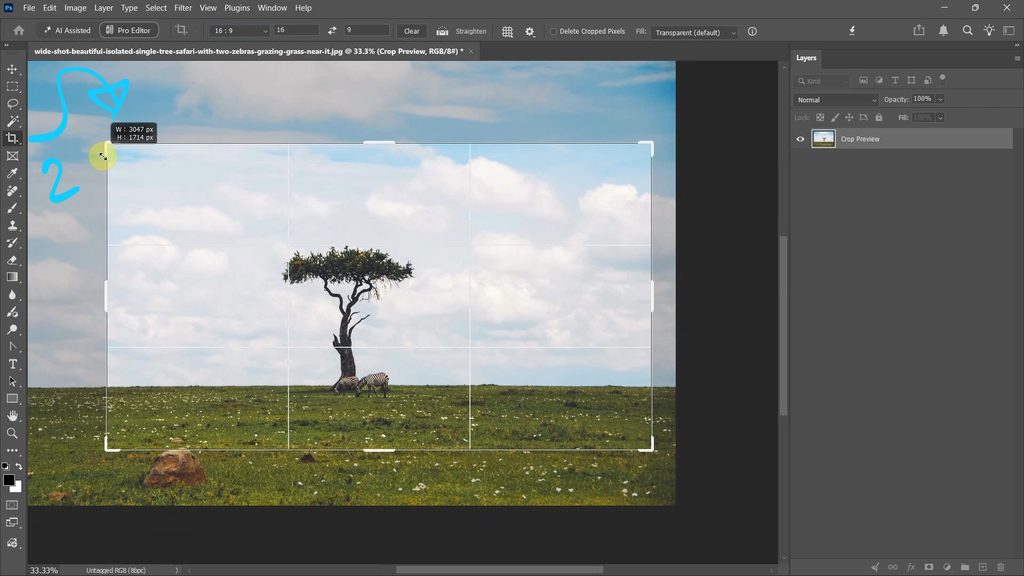
3. Press Enter to confirm cropping
Alternative, we can find all these steps visually in YouTube tutorial, watch here,

Click here to subscribe this YouTube channel, more video will be shared with you.
Feel free to watch more video on【YouTube Playlist】
Timestamp
0:00 Intro – How to crop image in Photoshop
0:10 Open image
0:18 Convert to Smart Object
0:37 Make Selection and Crop
0:54 Canvas Size to crop image to specific size
1:30 Crop Tool with change aspect ratio
by artist.b@cgian.com
Have fun with CG. Let’s Create!
#cgian #photoshop #tutorial
Continuous Reading:
Photoshop how to wrap image
Photoshop how to rotate image and layer
Feel free to share this post with your friends or send it to yourself to bookmark it
