

Canva tips and tricks, tutorial video shows how to crop image into geometric shape in Canva. In this tutorial, we will show the steps to import image into Canva design, and then we can edit the image with add Frames and then crop image with Frames. Steps are easy to follow for Canva beginners. Happy sharing and save it for later. More Canva Tutorial are available here.
How to crop image into geometric shape in Canva
We can follow these to crop image into geometric shape in Canva,
1. After starting Canva, we can drag and drag image into Canva from your hard drive to import image into Canva
2. Select the image and then open it, and choose Open in Editor in Canva
3. Then go to left tool bar, find Elements, and select Frames
4. Choose a frame with geometric shape to make frame into Canva design page

5. Select image again, and drop into frame to crop image with shape
In addition , we show all these steps visually in this YouTube tutorial video, watch here,
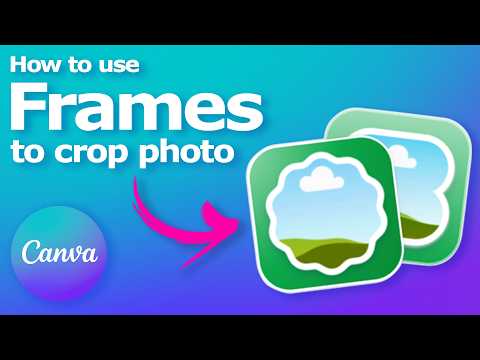
Timestamp
0:00 Intro – How to use Canva frames to crop photos into shapes
0:10 Import image into Canva
0:21 Open Editor
0:35 Add Frames, and choose shapes 0:45 Adjust Frames
0:58 Crop image with frame
1:06 Fine adjustment for cropping area
Click here to subscribe this YouTube channel, more video will be shared with you.
Feel free to watch more video on【YouTube Playlist】
by artist.b@cgian.com
Have fun with CG. Let’s Create!
#cgian #canva #graphicsdesign
Continuous Reading:
Canva hyperlink tutorial
Canva Neon Text Effect Tutorial
Feel free to share this post with your friends or send it to yourself to bookmark it
