

Photoshop tips and tricks, tutorial shows how to change brush size in Photoshop with shortcuts. Brush is a useful tool and we can hit shortcuts to speed up photo editing speed. In this tutorial , we will go through how to use shortcut keys to use brush and change brush size. Steps are easy to follow for Photoshop beginners. Happy sharing and I hope this helps. More Adobe Photoshop Tutorial are available here.
How to change brush size in Photoshop with shortcut key
We can follow these steps to change brush size with shortcuts,
1. After opening an image in Photoshop, we can use shortcuts B to activate brush tool
2. Then we can use Left Square Bracket to reduce brush size or use Right Square Bracket to enlarge brush size
Alternatively, we can use Ctrl + Alt + Right Click to change brush size , these steps will be shown in this YouTube tutorial video, watch here,
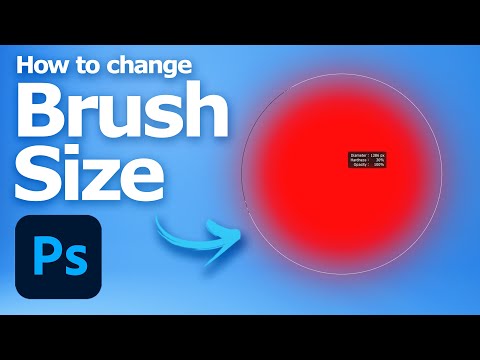
Timestamp
0:00 Intro – Photoshop change brush size
0:25 Brush Tool Shortcut B
0:34 Brush Size settings window
1:12 Change Brush Size using Shortcuts [ and ]
1:38 Change Brush Size using Shortcuts Ctrl + Alt + Right Click
Click here to subscribe this YouTube channel, more video will be shared with you.
Feel free to watch more video on【YouTube Playlist】
by artist.b@cgian.com
Have fun with CG. Let’s Create!
#cgian #photoshop #tutorial
Continuous Reading:
Photoshop how to remove wrinkles
How to create Shadow and Reflection under Object in Photoshop
How to crop a photo into a circle in Photoshop
Feel free to share this post with your friends or send it to yourself to bookmark it
