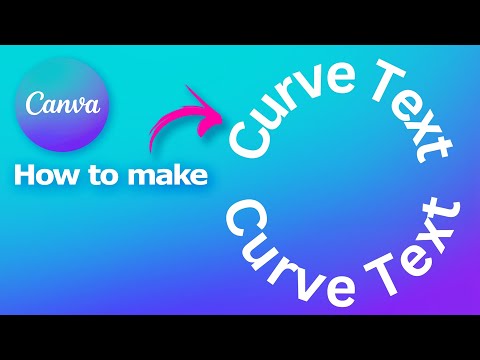
Canva tips and tricks, tutorial video shows how to bend text in opposite direction in Canva. In this tutorial, we will show how to add text with text box. Then we can bend text in one direction and also we can bend text in opposite direction in Canva. Happy sharing and save it for later. More Canva Tutorial are available here.
How to bend text in opposite direction in Canva
We can follow these steps to bend text in opposite direction in Canva,
1. Select Text tool, and add a text box into Canva design page
2. Type to edit the text
3. Select text box and go to top option bar, and choose Effects
4. In Effects panel, go to Curve, and adjust the value to position or negative to make text bended income direction or another direction
How to bend text in opposite direction in Canva
Furthermore, we can find all these steps visually in this YouTube tutorial video, watch here,
Timestamp 0:00 Intro – How to curve text in Canva 0:15 Add Text using Text Box 0:30 Resize the text 0:40 Make Text Curved 0:53 Make curve text in Canva the opposite way