

Contextual Task Bar is a new feature in Photoshop 2023, version 24.5 or later. This Task Bar has been set to showed in default after installed this new version of Photoshop. If we want to hide this Contextual Task Bar or show it, the below steps will show how we can do it. Hope this helps. More Photoshop Tips and Tricks, and Tutorial are available here.
How to show and hide contextual task bar in Photoshop
1. To show Contextual Task Bar, we can go the windows and check “Contextual Task Bar”.
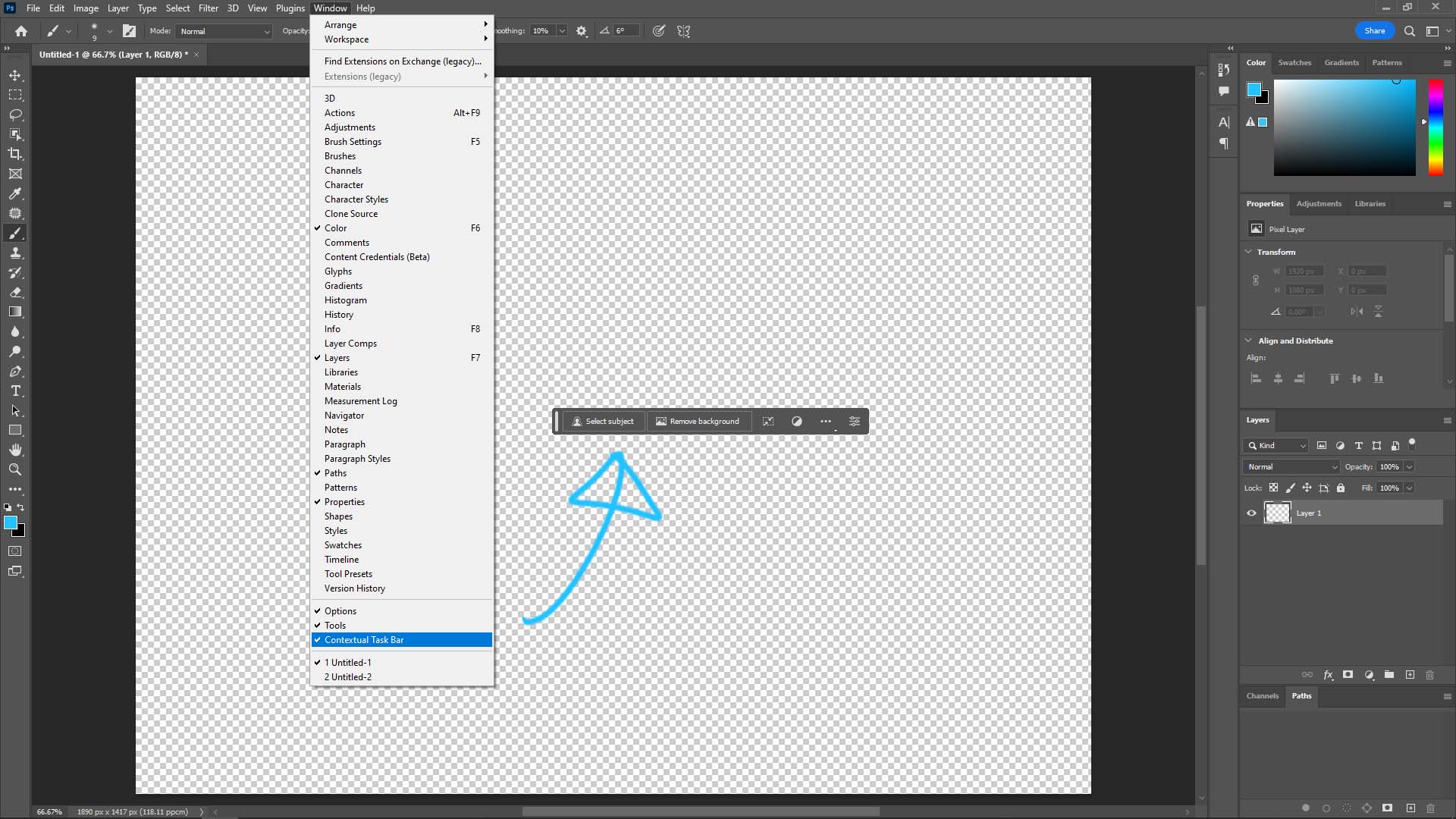
2. To hide Contextual Task Bar, we can click the 3-dot on the bar, and uncheck “Hide”.

Hope this helps. More Photoshop Tips and Tricks, and Tutorial are available here.
Have fun with CG, to make it simple.
Continues Reading :
How to create Shadow and Reflection under Object in Photoshop
How to underline text in Photoshop
Remove Tool in Photoshop
Photoshop how to remove wrinkles
Welcome to share with your friend.
by artist.B@cgian.com
