
Canva tips for image editing, this is the video to show Canva fade image to transparent tutorial. In this tutorial, we will use Free Canva Apps to make image transparency with gradient. Therefore, we can make fade out effects to image in Canva for graphic design. Steps are easy to follow for Canva beginners. Happy sharing and I hope this helps. More Canva Tutorial are available here.
Canva fade image to transparent tutorial
We can follow these steps to fade image to transparent in Canva.
1. After adding image into Canva design page
2. We can go to left tool bar, and select Apps
3. In search bar, search Image Blender
4. Then select Image Blender Apps to enter control panel
5. We have options to choose blender with linear, radial, or brush
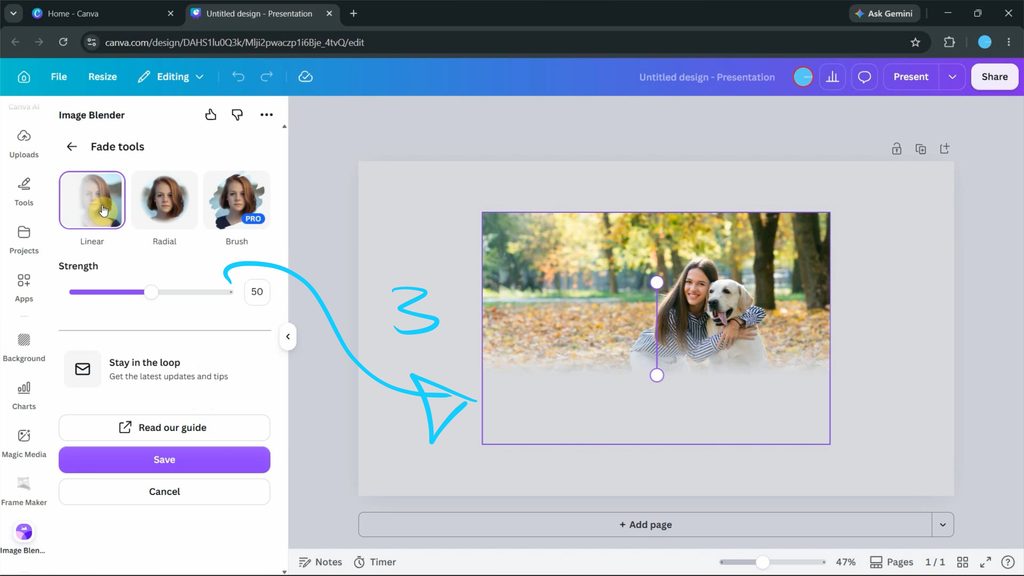
6. We can adjust the strength of transparency
7. On image, we can adjust the control bar to direct the direction and position of fade out effect
Alternative, we can find all these steps visually in this YouTube tutorial, watch here,

Timestamp
0:00 Intro – How to make image fade out in Canva
0:10 create Presentation Design Page
0:20 Upload Image
0:45 Use Image Blender Apps
1:00 Apply Fade out Effect
1:15 Customize Fate Out of Image
Click here to subscribe this YouTube channel, more video will be shared with you.
Feel free to watch more video on【YouTube Playlist】
by artist.b@cgian.com
Have fun with CG. Let’s Create!
#cgian #canva #graphicsdesign
Continuous Reading:
Canva how to tilt image
How to crop image in Canva
Feel free to share this post with your friends or send it to yourself to bookmark it
