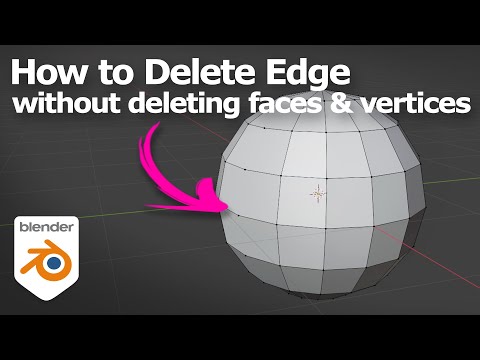
Blender tips and hacks, tutorial video shows Blender delete edge without deleting Vertex and faces. When we delete an edge in Edit Mode, we can delete edge and keep face or delete face together. Also, we can delete edge without deleting Vertex. All steps are easy to follow for Blender beginners. Happy sharing and I hope this helps. More Blender Tutorial are available here.
Blender delete edge without deleting vertex and face
We can follow these steps and shortcuts to delete edge without deleting vertex and faces.
1. Select an object, and switch to Edit Mode
2. Make sure that Edge Selection is activated, by hitting shortcut 2
3. Select edge
4. Hit Delete
5. Choose Delete Edge to delete both edge and face
6. Choose Dissolve Edge to delete edge and keep face
7. If we want to delete Edge without deleting vertex and go to Delete Edge panel on bottom right of viewport, then uncheck the box Dissolve Vertices
Blender delete edge without deleting vertex and face
All these steps and shortcuts are also shown in this YouTube tutorial video visually, watch here,
Timestamp 0:00 Intro – Show and Hide Vertex in Blender 0:15 Enter Edit Mode and use Vertex Selection 0:30 Hide Vertex with shortcut H 0:40 Show hidden vertex with shortcut Alt + H